Guide to Comparing Two Sheets
In addition to comparing two different Excel files, xlstools also supports comparing different sheets within the same file. This is commonly used in scenarios such as data version changes, monthly reports, pre and post inventory checks, etc.
How to Operate?
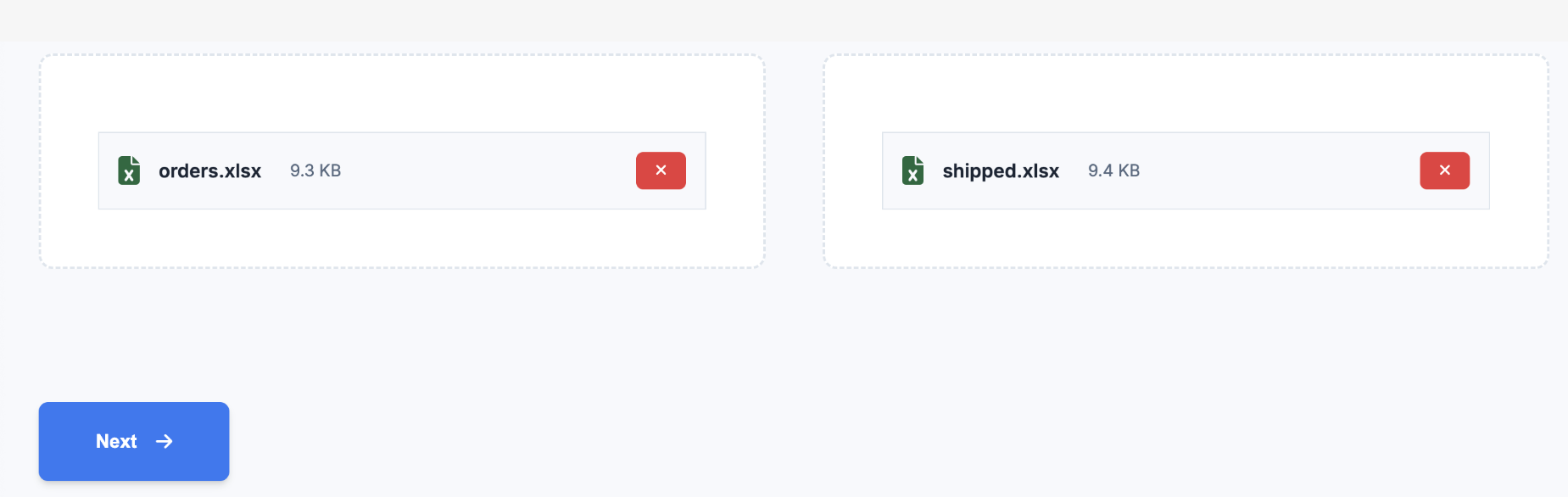
- Upload the same Excel file to both "File 1" and "File 2" areas
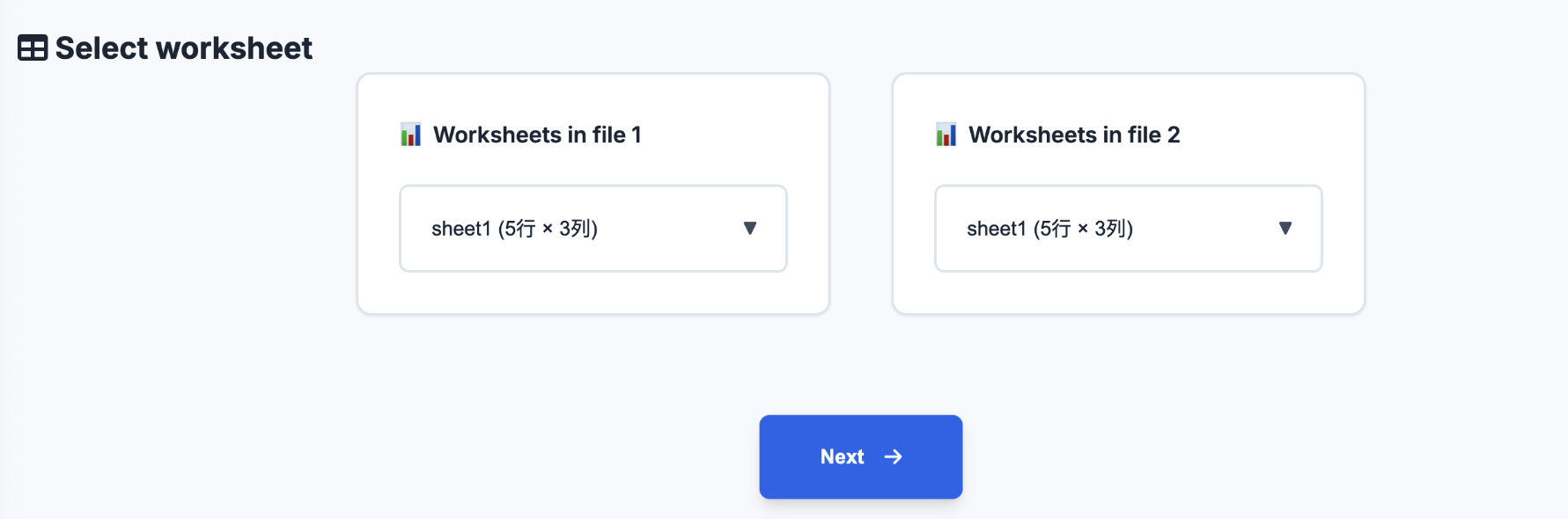
- Select the two sheets you want to compare (e.g., "2023 Data" and "2024 Data")
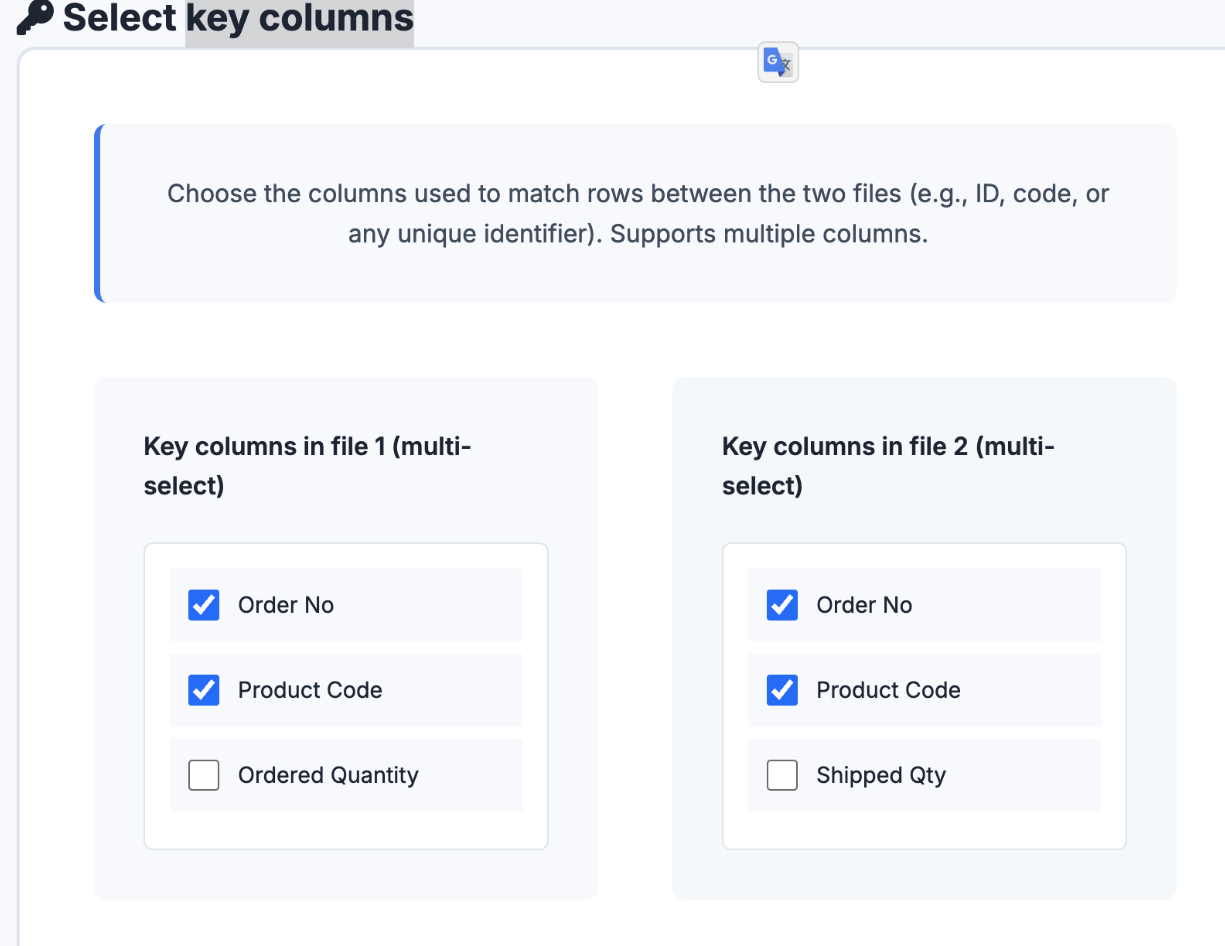
- Select the matching key columns (e.g., ID, Name, etc., multiple selections allowed)
- Select the content columns to compare (e.g., Quantity, Amount, etc.)
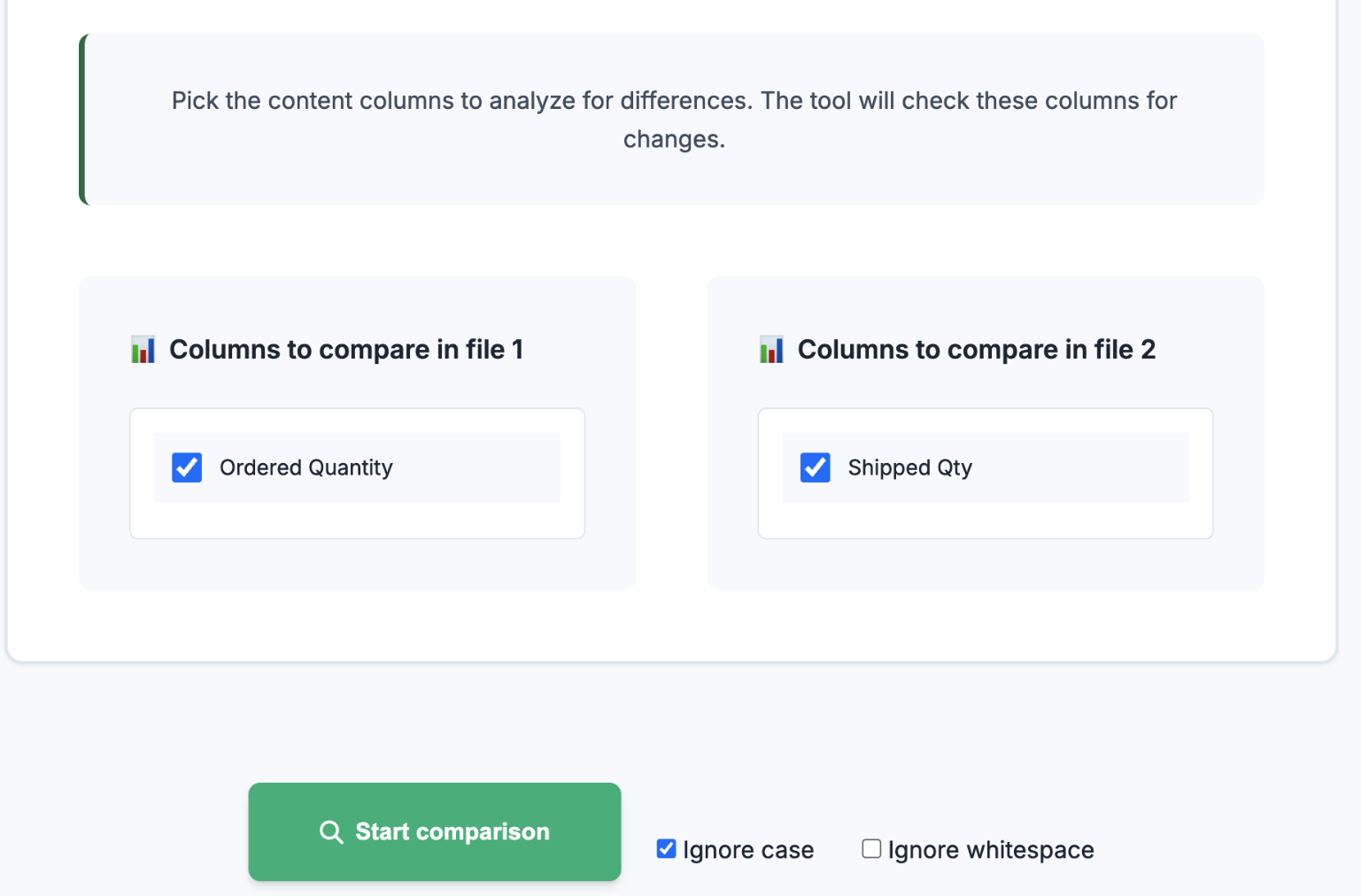
- Click "Start Comparison", the system will automatically analyze and categorize results
- Export the comparison report containing all categorized details
📥 View sample report: result.xlsx
Sample Data
Suppose there is an Excel file containing two sheets:
Sheet1: 2023 Data
| ID | Name | Quantity |
|---|---|---|
| 1001 | Apple | 50 |
| 1002 | Banana | 30 |
| 1003 | Orange | 20 |
| 1004 | Grape | 10 |
Sheet2: 2024 Data
| ID | Name | Quantity |
|---|---|---|
| 1001 | Apple | 55 |
| 1002 | Banana | 28 |
| 1003 | Orange | 20 |
| 1005 | Watermelon | 5 |
After comparison, the system can automatically identify:
- Exact Match: Both ID and name are consistent, quantity is the same (e.g., Orange)
- Quantity Difference: ID and name are consistent, quantity is different (e.g., Apple, Banana)
- Only in 2023: ID appears only in Sheet1 (e.g., Grape)
- Only in 2024: ID appears only in Sheet2 (e.g., Watermelon)
Application Scenarios
- Monthly/annual data change comparison
- Pre and post inventory comparison
- Data validation before and after version upgrades
- Report consistency checks
Usage Recommendations
- Upload the same file and select different sheets separately
- Key columns should be fields that uniquely identify each record (e.g., ID + Name)
- Clean up spaces and formatting issues before comparison
- Single file should not exceed 10MB, supports tens of thousands of rows
Privacy & Security
All data processing is completed locally in your browser and is not uploaded to any server, ensuring data security.
For detailed operation instructions or sample files, please refer to the download links and images on the page.